
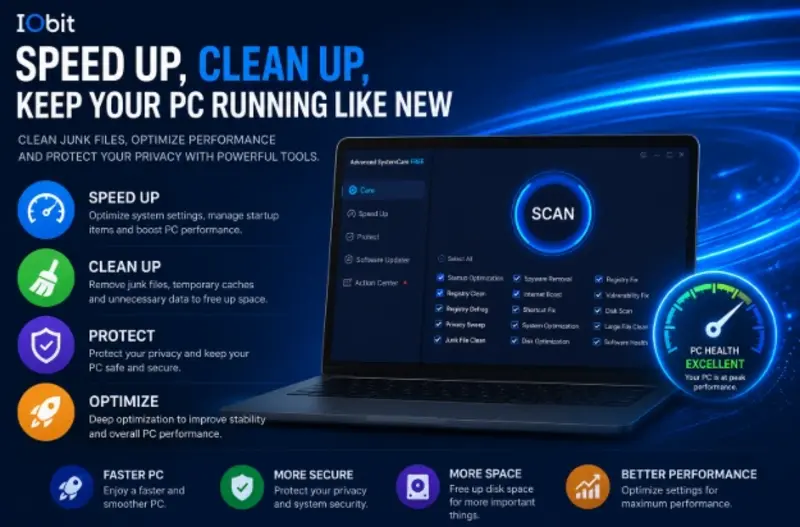
Over time, every Windows computer begins to slow down. Programs take longer to open, storage fills up with unnecessary files, startup times increase, and the overall user experience becomes frustrating. While many people assume they need to replace their computer, the real issue is often poor system maintenance.
Regular maintenance helps improve speed, remove unnecessary files, and keep your system running efficiently. Whether you use your PC for work, gaming, studying, or everyday browsing, taking care of your computer can significantly improve its performance and lifespan.
In this guide, we’ll explore why PC maintenance matters, common reasons computers become slow, and the tools that can help keep your Windows system running smoothly.
Why Do Windows PCs Slow Down?
Even high-performance computers gradually lose efficiency after months or years of use.
Some of the most common reasons include:
- Junk files building up over time
- Too many startup applications
- Temporary system files
- Registry issues
- Outdated software
- Programs running in the background
- Applications that are no longer needed
These problems consume valuable storage space and system resources, leading to slower performance.
Fortunately, most of these issues can be resolved with proper maintenance.
The Importance of Using a PC Cleaner
One of the easiest ways to improve Windows performance is by using a reliable PC cleaner.
A good PC cleaning utility helps remove temporary files, clear unnecessary system data, optimize startup settings, and improve overall responsiveness.
Instead of manually searching through folders and system settings, users can automate much of the optimization process.
Some common benefits include:
- Faster system startup
- Improved overall performance
- Removal of junk files
- Better storage management
- Optimized system resources
Regular optimization also helps reduce clutter that naturally accumulates during everyday computer use.
More Than Just Cleaning
Modern optimization software offers much more than simple file cleanup.
Many utilities also include features such as:
- Startup optimization
- Privacy protection
- Performance monitoring
- System health checks
- Registry cleaning
- Browser cleanup
These additional features help maintain long-term system stability while improving everyday performance.
Why Uninstalling Software Properly Matters
Many users install new applications but rarely remove old ones correctly.
Using Windows’ built-in uninstall feature often leaves behind leftover files, folders, registry entries, and temporary data.
Over time, these leftovers accumulate and consume valuable storage space.
This is where a dedicated uninstall tool becomes useful.
Unlike standard uninstall methods, a professional uninstall tool helps remove both the application and its remaining files, resulting in a cleaner system.
Benefits of Using an Uninstall Tool
A reliable uninstall utility offers several advantages:
Complete Software Removal
It scans for leftover files and registry entries after uninstalling programs.
Better Storage Management
Removing unnecessary software frees valuable disk space.
Improved Performance
Fewer unused programs mean fewer background processes consuming system resources.
Cleaner Registry
Removing leftover registry entries can help reduce unnecessary system clutter.
Easier Software Management
Users can quickly identify rarely used applications and remove them safely.
For users who frequently install and test software, using a dedicated uninstall solution can make long-term system maintenance much easier.
Simple Tips to Keep Your Computer Running Smoothly
Alongside using optimization software, there are several good habits every Windows user should follow.
Remove Unused Applications
Review installed programs regularly and uninstall software you no longer use.
Delete Temporary Files
Temporary files continue to accumulate during normal computer use.
Keep Windows Updated
Installing the latest updates improves both security and stability.
Organize Startup Programs
Disable unnecessary startup applications to reduce boot time.
Scan for Performance Issues
Regular system scans help identify problems before they become serious.
Restart Your Computer Regularly
A simple restart clears temporary processes and refreshes system resources.
Recommended Maintenance Schedule
Keeping a regular maintenance routine can help prevent performance issues.
Weekly
- Delete temporary files
- Empty the recycle bin
- Review downloads
Monthly
- Run a full PC optimization
- Remove unused software
- Check startup applications
Every Few Months
- Perform a complete system cleanup
- Review installed programs
- Organize storage space
Following a consistent schedule helps maintain reliable performance throughout the life of your computer.
Choosing the Right Optimization Software
When selecting maintenance software, consider the following features:
- Easy-to-use interface
- Automatic system scanning
- Safe cleanup process
- Performance optimization
- Privacy protection
- Complete software removal
- Regular updates
Software that combines these features can simplify PC maintenance while helping users achieve better long-term performance.
Final Thoughts
A slow computer doesn’t always require expensive hardware upgrades. In many cases, regular maintenance and proper software management are enough to restore smooth performance.
Using a trusted PC cleaner helps remove unnecessary files, optimize system resources, and improve overall responsiveness. At the same time, a reliable uninstall tool ensures unwanted applications are removed completely without leaving behind unnecessary files or registry entries.
By combining regular cleanup, smart software management, and good maintenance habits, Windows users can enjoy a faster, cleaner, and more reliable computer for years to come